The garden
Beds per season, a plan from sowing to harvest, and keeping track of your harvest. For a vegetable garden or flower beds.
Step 1
Create a garden
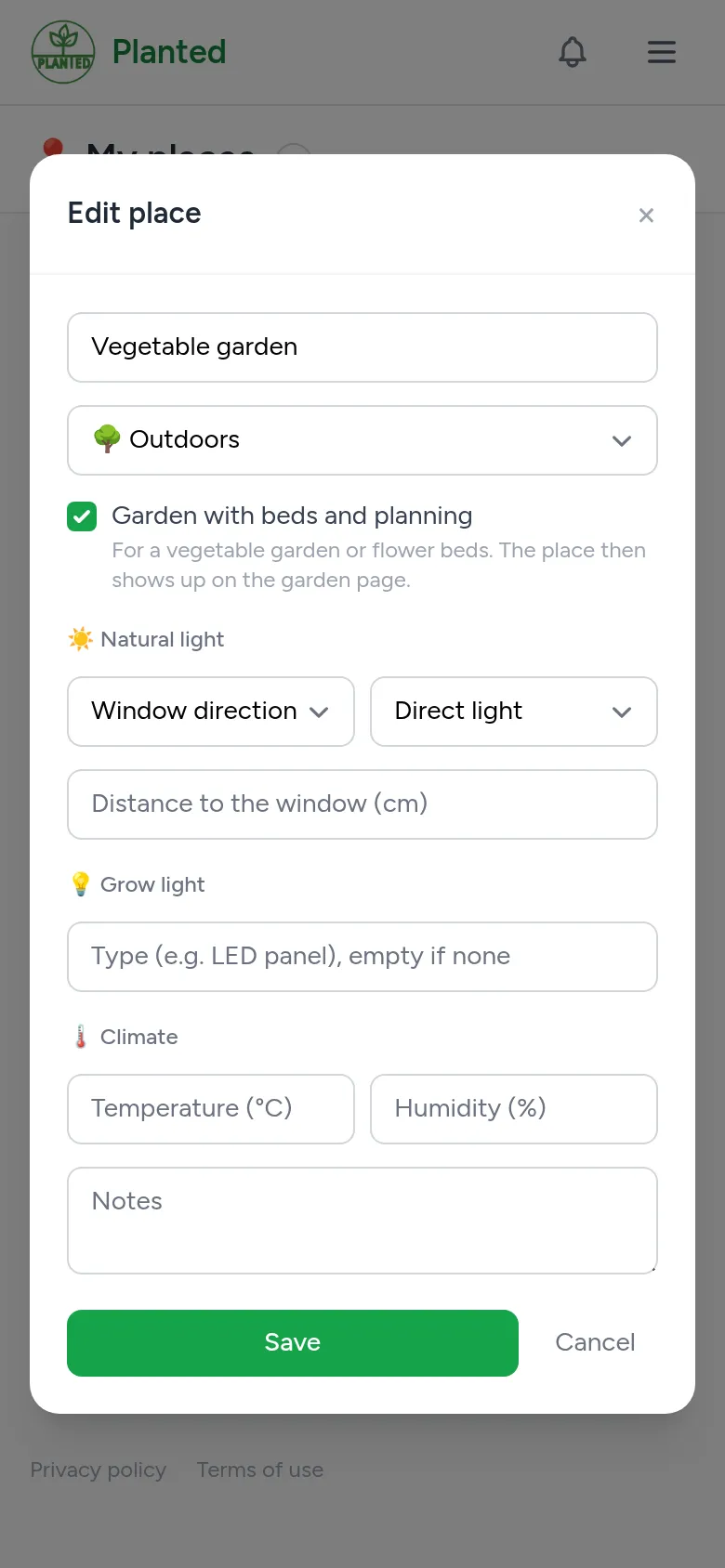
A garden is a place outdoors or a greenhouse. Go to My places (in the menu under your name), add a place or edit one, choose outdoors or greenhouse as the type and tick Garden with beds and planning. The place then shows up on the Garden page.
Step 2
Add beds
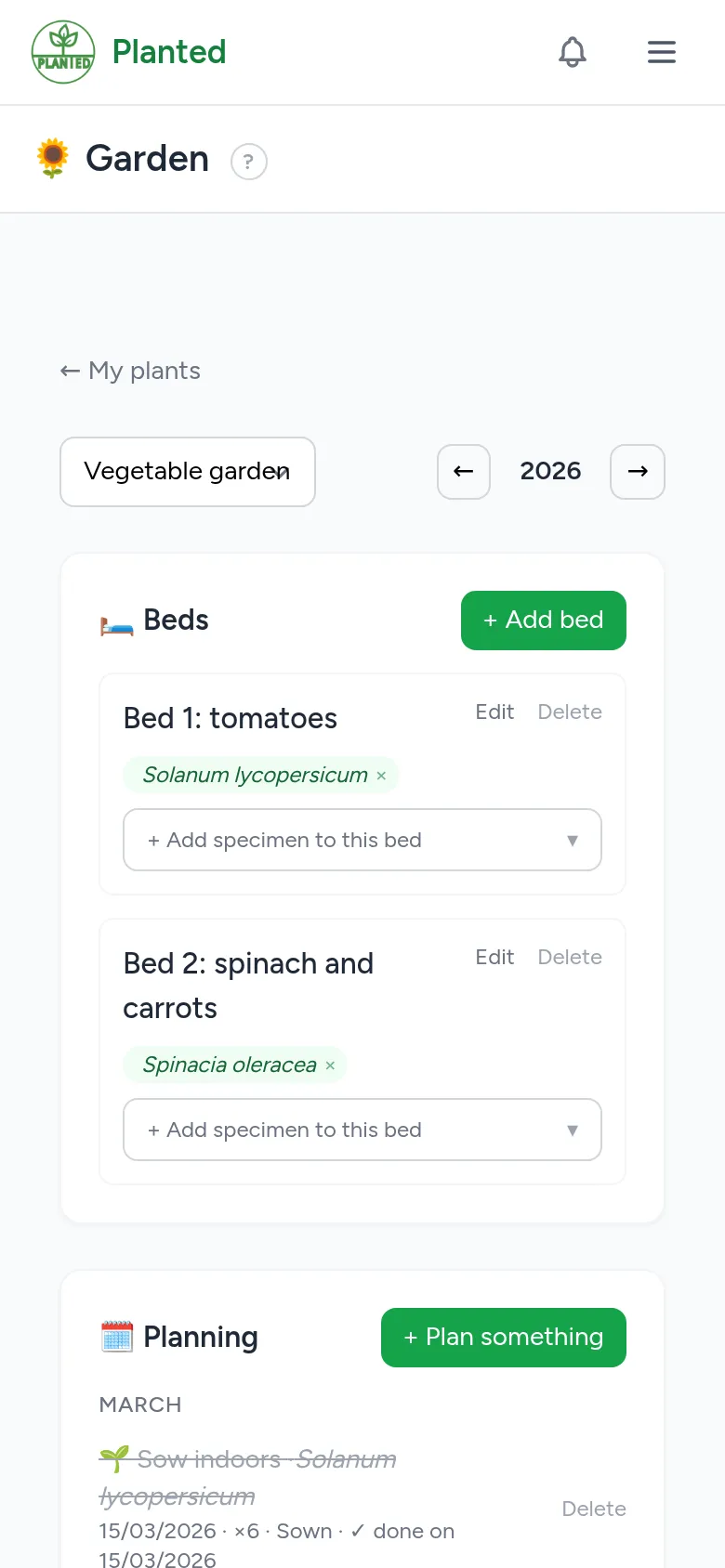
Open Garden and choose your garden and the year. With + Add bed you create a bed, for example "Bed 1" or "Tomatoes". If a plant is already growing there, put that specimen in the bed with + Add specimen to this bed.
Step 3
Plan what you will do
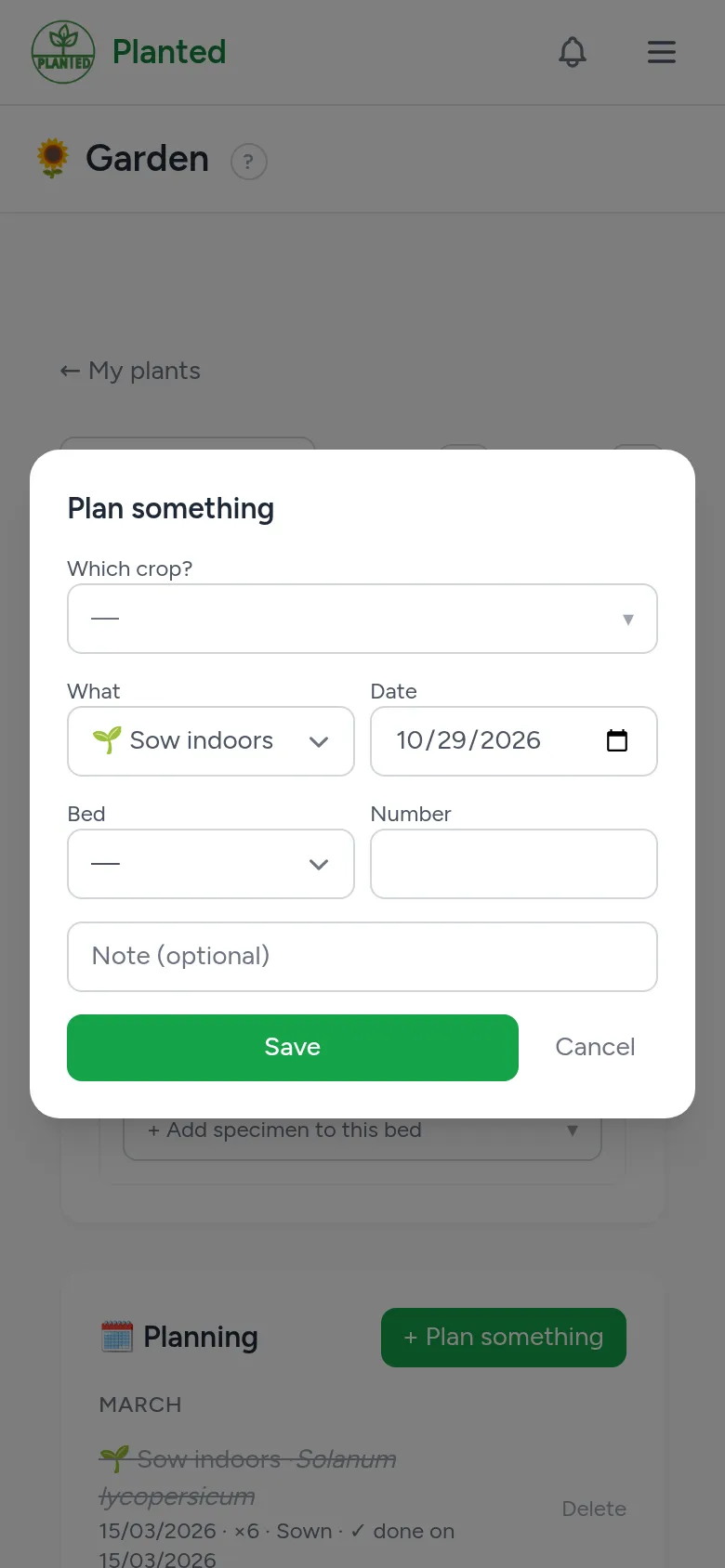
With + Plan something you choose a crop, what you want to do (sow indoors, sow outdoors, plant out or harvest), a date and optionally a bed and a number. The crop comes from your collection or your wishlist: add the plant there first. If the plant has a growing calendar, you see the advised months and get a warning when the date falls outside them.
Step 4
Tick off what is done
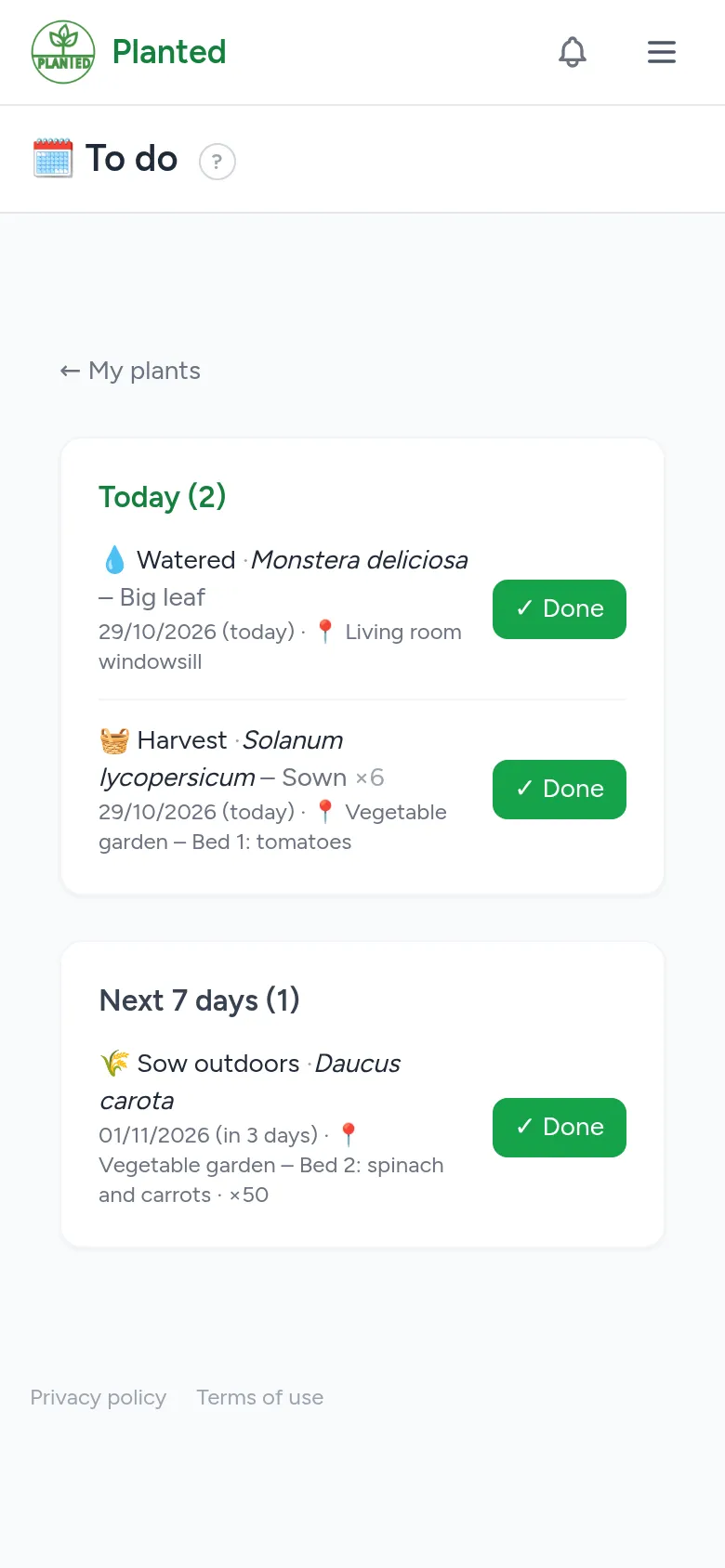
Planned moments show up under To do and in your reminders. Tick a moment off as soon as it is done. When sowing, Planted creates a specimen right away; if the crop was on your wishlist, it moves to your collection. When planting out, the specimen moves to the place of the garden and into the bed.
Step 5
Track your harvest
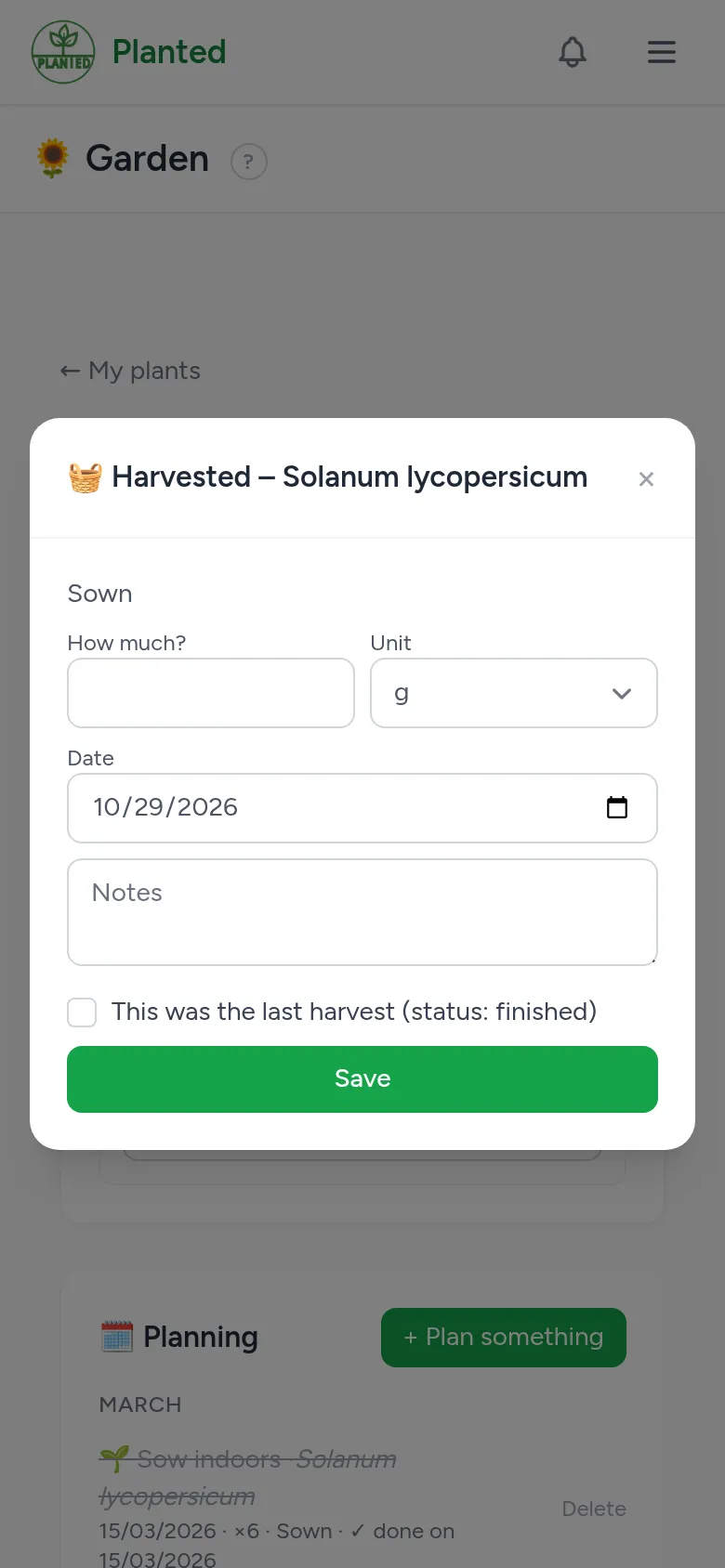
For a harvest you fill in how much you harvested, in pieces, grams or kilos. If it was the last harvest, tick that: the specimen gets the status finished. On the garden page you see per year how much you harvested of each crop.
Step 6
A new season
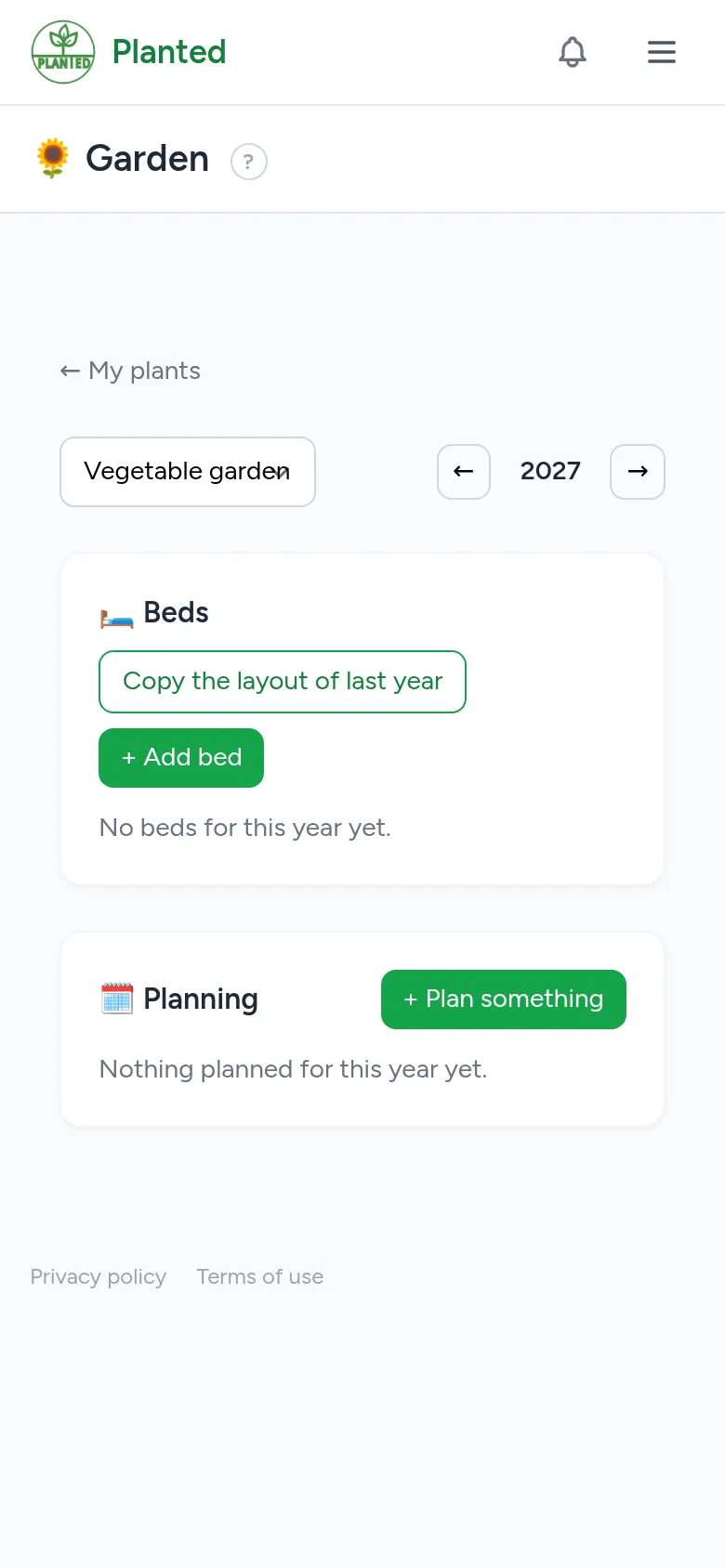
Go to the new season with Next year and choose Copy the layout of last year. The beds come along, and so do the specimens that are still alive. Finished and dead specimens stay in the old year.